
The dfc command in Linux is a powerful tool that provides users with file system space usage information. It is a tool similar to df which provides a snapshot your file system. Here is a look at my file system using the df command:
don@Jude:~$ df
Filesystem     1K-blocks      Used Available Use% Mounted on
tmpfs            6548596      2272   6546324   1% /run
/dev/nvme0n1p2 959786032 288646724 622311100  32% /
tmpfs           32742976     84192  32658784   1% /dev/shm
tmpfs               5120        12      5108   1% /run/lock
efivarfs             192       125        63  67% /sys/firmware/efi/efivars
tmpfs           32742976         0  32742976   0% /run/qemu
/dev/nvme0n1p1    523248      6284    516964   2% /boot/efi
tmpfs            6548592       208   6548384   1% /run/user/1000
I can tell with a quick glance that I still have a lot of space available on my system. Using dfc offers additional features such as color-coded output and graphical representations, making it easier to visualize disk usage at a glance. Here is a quick look at my system using dfc:
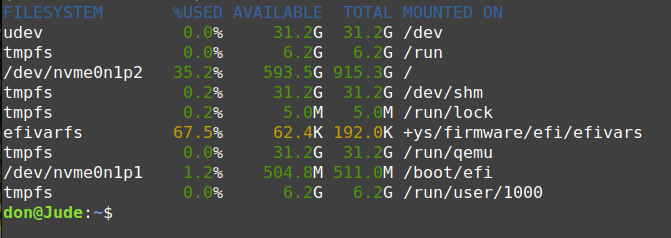
You can easily see that dfc provides more information and it color and in a format that is more readable for the user. You can turn off the default color option by issuing the following command:
$ dfc -c neverThis provides a non color read out of the same data.
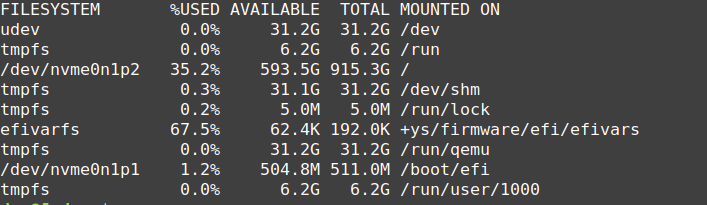
You can display all the file systems including pseudo, duplicate and inaccessible filesystems by using the following command:
$ dfc -a 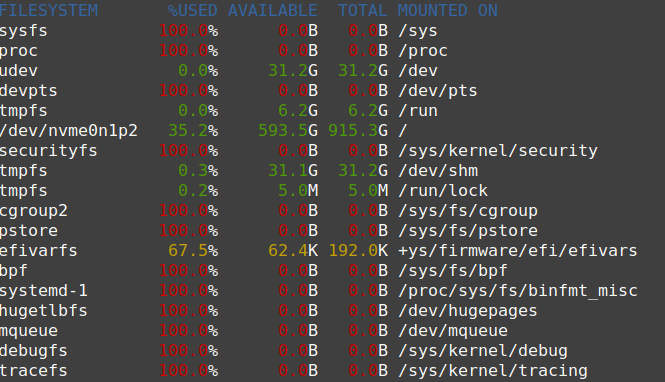
The dfc command was not included with my distribution and had to be installed from the command line for Ubuntu based distributions.
$ sudo apt install dfcinstallation for .rpm based distributions would be the following:
$ sudo dnf install dfcThe command is open source with a BSD-Clause License. You can export the output of the command in HTML, JSON, Tex and CSV formats. The man page provides excellent documentation and explanation of the various switches for the command. Use the dfc -h command display an excellent help menu with all the options for the command.