
I first started using VirtualBox many years ago, and it quickly became my favorite virtualization platform. What drew me in initially was its open-source nature. The base package, which includes both the source code and binaries, is licensed under GPL version 3.
VirtualBox is impressively versatile. It runs on Linux, macOS (both Intel and ARM architectures), Windows, and even Solaris. Since its initial release back in 2007, it has been under continuous development, steadily improving with each iteration. The most recent stable release, version 7.2.4, was rolled out in October of this year, demonstrating that the project is still very much alive and evolving.
For me, VirtualBox has always been more than just a tool—it’s a sandbox for exploration. I use it to test new Linux distributions, experiment with Windows releases, and even help others with their computing needs.
My Daily Driver Setup
To give you some context, my main workstation is a System76 Meerkat running Linux Mint 22.2. It’s a compact yet powerful machine, equipped with 32 GB of RAM and a one-terabyte NVMe drive. This hardware setup makes virtualization a breeze. With plenty of memory and fast storage, I can run multiple virtual machines simultaneously without noticeable lag.
Installing VirtualBox on Linux Mint is straightforward. From the command line, it’s as simple as:
$ sudo apt install virtualbox
For Fedora users, the installation command is slightly different:
$ sudo dnf install virtualbox
Within minutes, you can have VirtualBox up and running, ready to host any operating system you want to experiment with.
The Dreaded VT-x Error
Of course, no journey in tech is without its hiccups. When I first launched VirtualBox on my Linux Mint system, I encountered a frustrating error message:
VT-x is being used by another hypervisor (VERR_VMX_IN_VMX_ROOT_MODE).
VirtualBox can't operate in VMX root mode. Please disable the KVM kernel extension, recompile your kernel and reboot (VERR_VMX_IN_VMX_ROOT_MODE).
At first glance, this looks intimidating. Essentially, the error means that another hypervisor—specifically KVM (Kernel-based Virtual Machine)—is already using the VT-x virtualization extensions provided by the CPU. Since VirtualBox also relies on VT-x, the two hypervisors clash, preventing VirtualBox from running properly.
The Solution: Disabling KVM
Thankfully, the fix turned out to be relatively simple. After some searching online, I found a solution that worked perfectly. By unloading the KVM Intel kernel module, VirtualBox can reclaim access to VT-x and function normally.
Here’s the command that solved the problem:
$ sudo modprobe -r kvm_intel
Once executed, VirtualBox launched without issue. No kernel recompilation, no reboot—just a quick command to disable the conflicting module.
This solution has become part of my routine whenever I encounter the VT-x error. It’s a small inconvenience, but one that’s easy to manage once you know the trick.
Real-World Use Case: Helping My Dentist
A recent example highlights just how practical VirtualBox can be. My dentist asked me to help set up a Windows Server 2025 file server for his practice management system. Instead of risking his production environment, I spun up a virtual machine in VirtualBox to test configurations and ensure everything worked smoothly before deploying it on his actual hardware.
This kind of flexibility is invaluable. VirtualBox allows you to simulate real-world environments without the cost or risk of physical machines. Whether you’re a hobbyist tinkering with new operating systems or a professional preparing for deployment, VirtualBox provides a safe and efficient playground.
I downloaded a Windows Server 2025 ISO from Microsoft. The server evaulation ISO is 5 Gigabytes and is in my Downloads folder. I started VirtualBox and mounted as depicted below.
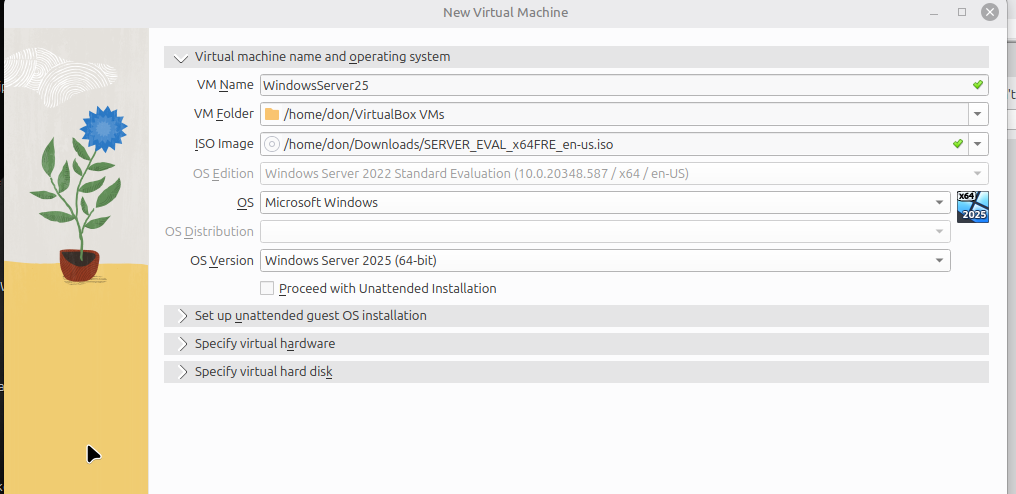
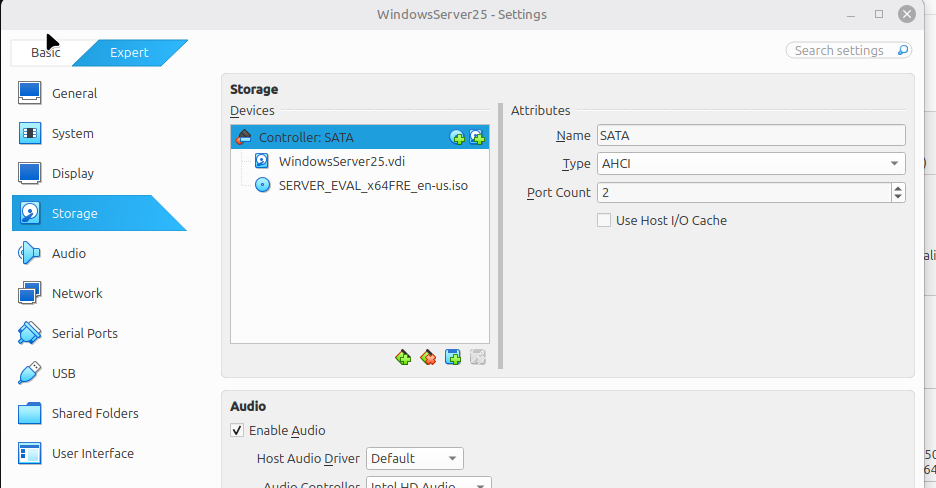
I configured the storage in VirtualBox using its built‑in tools and selected a bridged adapter to connect to my home network. By default, VirtualBox provides a 50 GB disk, though you can increase the size if needed. It also lets you add extra drives in the storage settings, which is useful for experimenting with different RAID configurations. While hardware RAID isn’t supported, you can still explore software RAID setups within VirtualBox.
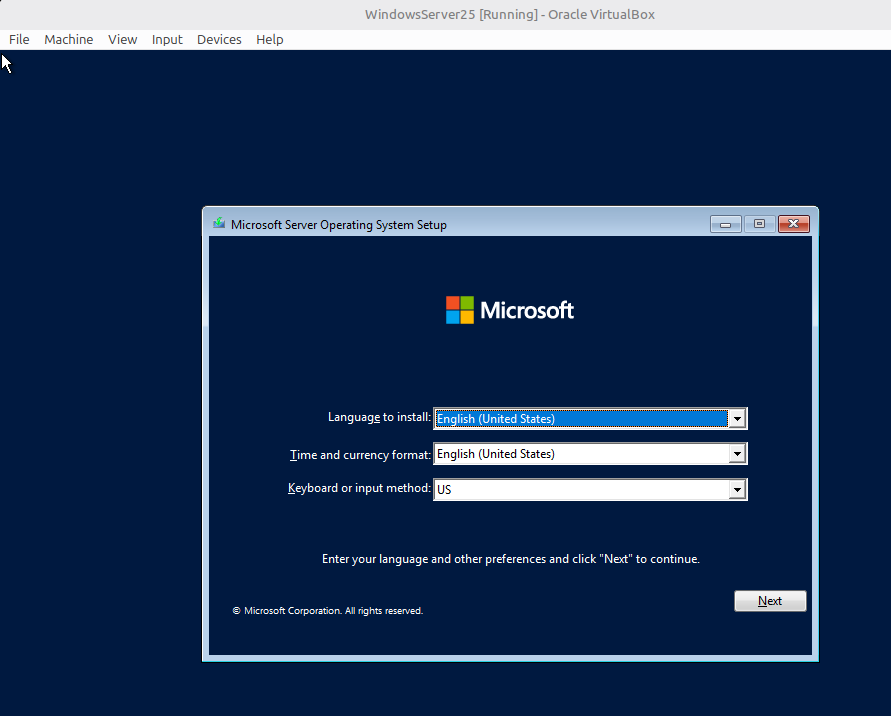
After completing the preliminary setup, I was ready to start the Windows Server 2025 installation. The server boots just as it would on physical hardware, but the installation runs noticeably faster in a virtual environment—even though the overall process remains the same.
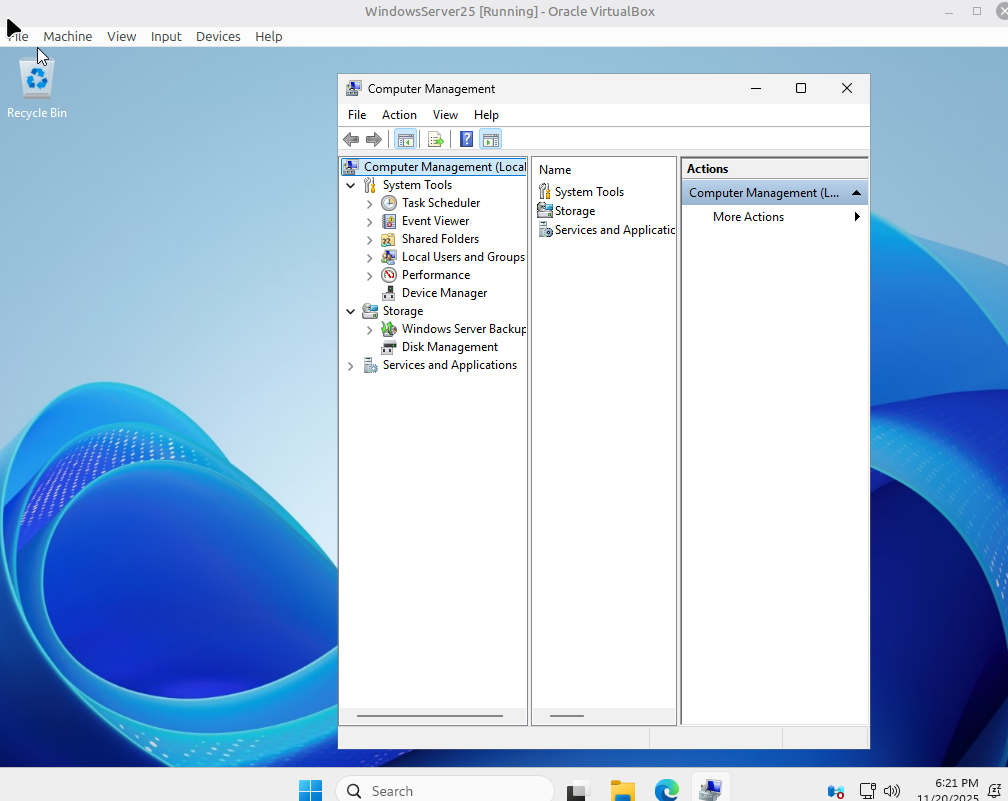
Once the process was complete I had a Windows Server 2025 ready to experiment with and gain familiarity before helping the Dentist.
Final Thoughts
My journey with VirtualBox has been one of discovery, problem-solving, and practical application. From testing new Linux distributions to helping my dentist set up a Windows Server, VirtualBox has proven itself time and again as a reliable and versatile virtualization platform.
If you haven’t tried VirtualBox yet, I highly recommend giving it a spin. Whether you’re running Linux, macOS, Windows, or Solaris, VirtualBox is ready to help you explore the digital frontier.